
Welcome back! Last week in Part 1, we covered what Temporary Access Passes (TAP) are, why they’re a game-changer for employee onboarding, and how to enable TAP in your Microsoft Entra ID tenant. If you missed it, go back and read Part 1 first – we’ll wait!
This week, we’re diving deep into the practical details: creating TAPs for users, the employee experience, best practices, troubleshooting, and alternative use cases. By the end of this post, you’ll be ready to deploy TAP with confidence.
Creating a TAP for a User
Now that TAP is enabled in your tenant (you did enable it after reading Part 1, right?), let’s create one for a new employee. I’ll show you two methods: the GUI approach for occasional use, and PowerShell for automation enthusiasts.
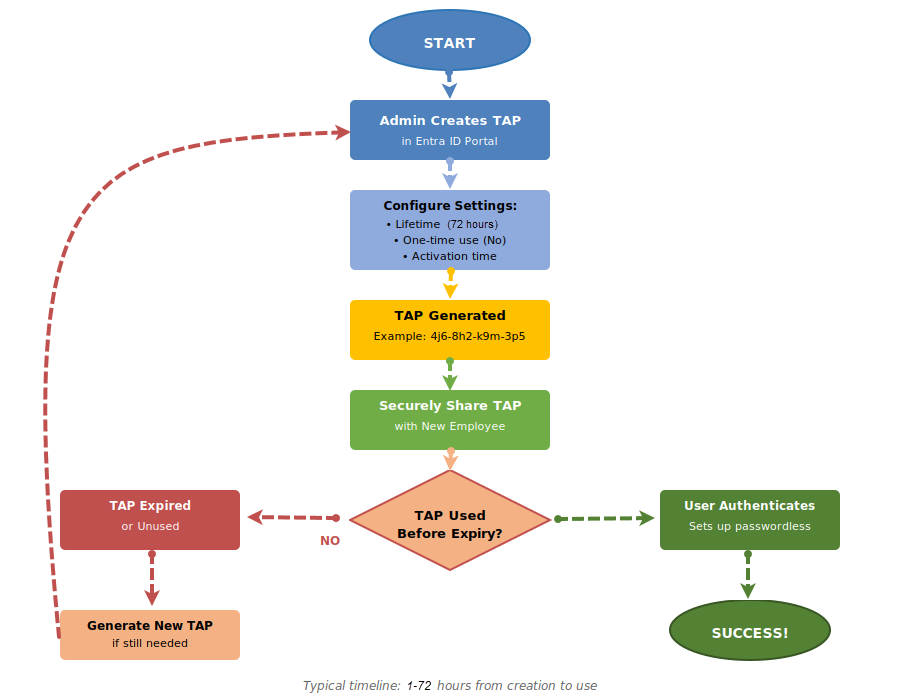
Method 1: Microsoft Entra Admin Center (GUI)
This is perfect when you’re onboarding one or two people and want a visual, point-and-click experience.
1. Navigate to Users: In the Entra Admin Center (https://entra.microsoft.com), go to Entra ID > Users > All users.
2. Select your user: Find and click on the user account you created for your new employee. Let’s say it’s sarah.johnson@aureinnovators.com.
3. Access Authentication methods: In the left navigation for that user, click Authentication methods.
4. Add Temporary Access Pass: Click + Add authentication method. From the dropdown, select Temporary Access Pass.
5. Configure the pass: A dialog will appear with options:
- Activation time: When the pass becomes valid. You can set it to activate immediately or at a future date/time. For someone starting Monday at 8 AM, set it to activate Monday at 6:30 or 7:00 AM.
- Lifetime (minutes): How long it’s valid. For a normal onboarding, 480 minutes (8 hours) is perfect.
- One-time use: Check this if you want it to expire after one use. For onboarding, leave it unchecked.
6. Generate and copy: Click Add. The system will generate the pass and display it. IMPORTANT: Copy this immediately! You won’t be able to see it again. It’ll look something like: 4j6-$8h2.
7. Securely share with the user: Send this to your new employee through a secure channel. I recommend using your organization’s secure file sharing or messaging platform. Never send it via unencrypted email. Some organizations use password managers with secure sharing features, or even good old-fashioned phone calls if you verify the recipient’s identity.
Method 2: PowerShell (For the Automation Enthusiasts)
If you’re onboarding multiple employees or want to integrate TAP creation into your provisioning workflow, PowerShell is your friend (as usual). Here’s how to script the process using Microsoft Graph PowerShell:
First, using an elevated PowerShell prompt, install and connect to Microsoft Graph PowerShell if you haven’t already:
# Install the MSGraph cmdlets (only needs done once on the machine)
Install-Module Microsoft.Graph -Scope AllUsers -Repository PSGallery -Force
# Connect to MSGraph (needs done once per PowerShell session)
Connect-MgGraph -Scopes "UserAuthenticationMethod.ReadWrite.All"

Now create the TAP with a start time of tomorrow (24 hours from now) and an 8-hour lifetime:
# Create variables to hold user-specific data
$userId = "sarah.johnson@azureinnovators.com"
$startDateTime = (Get-Date).AddHours(24).ToString("yyyy-MM-ddTHH:mm:ss.fffZ")
$lifetimeInMinutes = 480
$isUsableOnce = $false
# Create parameters with values set to varables
$params = @{
lifetimeInMinutes = $lifetimeInMinutes
isUsableOnce = $isUsableOnce
startDateTime = $startDateTime
}
# Create TAP
$tap = New-MgUserAuthenticationTemporaryAccessPassMethod -UserId $userId -BodyParameter $params
# Display TAP
Write-Host "Temporary Access Pass: $($tap.TemporaryAccessPass)"
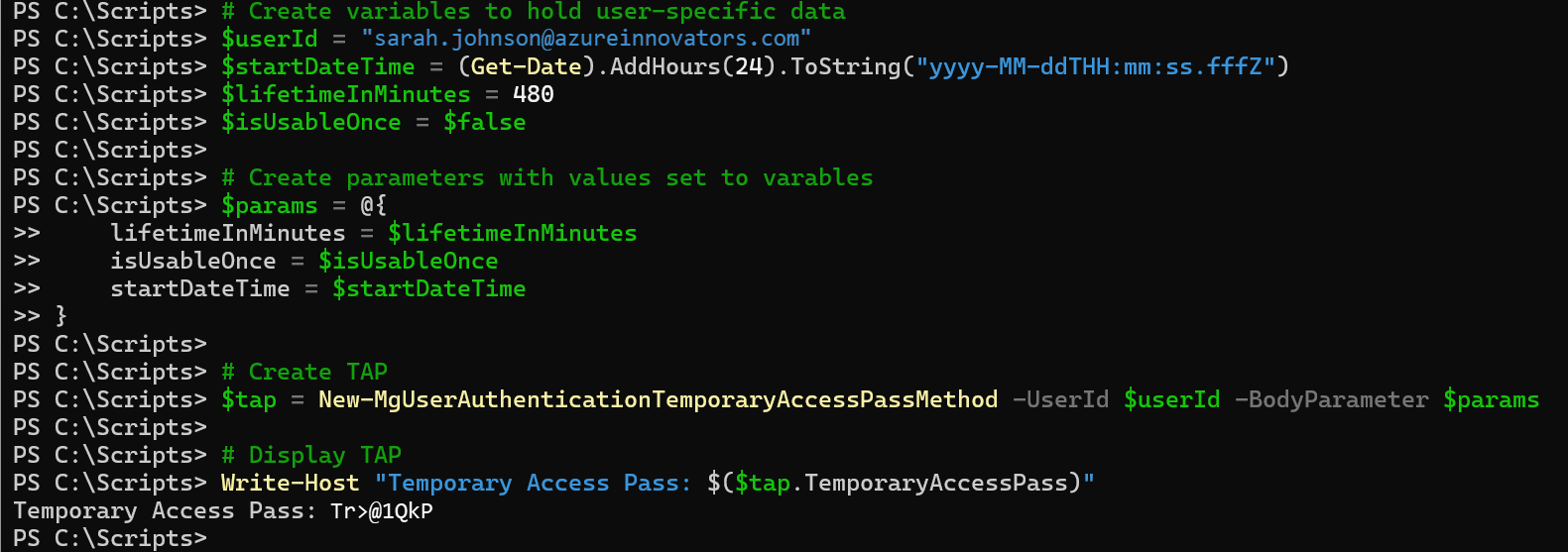
The script will output the TAP. Store it securely and send it to the user through your organization’s approved secure communication channel.
Pro automation tip: If you’re using an HR system that provisions user accounts, you can trigger this PowerShell script automatically when a new account is created. Store the TAP in a secure location (like Azure Key Vault) where the hiring manager or HR administrator can retrieve it. You could even integrate with a secure messaging system to send it directly to the new hire’s personal email or phone. Better user experience, less workload for IT – win, win!
The Employee Experience: Using a TAP
Let’s walk through what a new employee experiences when they receive and use their TAP. It’s important to understand this experience so you can set proper expectations and provide guidance when needed.
Day 1: The Employee’s Journey
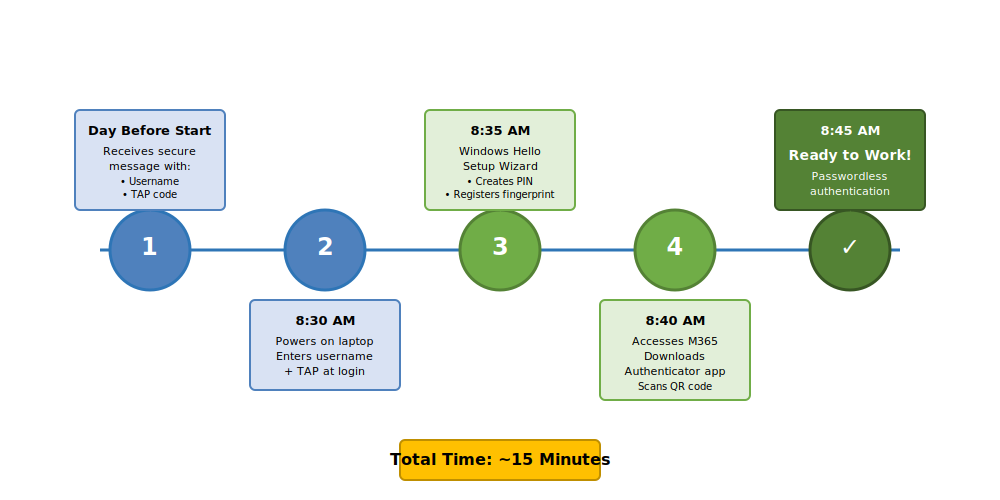
Sarah Johnson just started at Azure Innovators. Here’s how her morning goes:
1. Receiving the TAP: The day before her start date, Sarah received a secure message from IT with her username (sarah.johnson@azureinnovators.com) and a Temporary Access Pass (4j6-$8h2). The message explained to her that the TAP is only valid for 8 hours starting at 8:00 AM on her first day.
2. First sign-in: Sarah arrives and powers on her new laptop. At the Windows login screen, she enters her username. Instead of creating a password, she enters the TAP when prompted for credentials.
3. Setting up WHfB: After signing in with the TAP, Windows prompts her to set up Windows Hello for Business. She creates a PIN and registers her fingerprint or face (depending on her laptop’s capabilities). This becomes her primary authentication method going forward.
4. Registering MFA: During her first access to Microsoft 365, either by opening an M365 app such as Outlook or visiting the web apps, she’s prompted to register additional security info. She downloads Microsoft Authenticator App on her phone, scans a QR code, and registers her phone number as a backup method.
5. Done: That’s it. Sarah is fully set up with passwordless authentication. From now on, she uses WHfB facial recognition to sign in to Windows and the Microsoft Authenticator App on her phone for any additional MFA challenges. She never has to remember a password.
What Happens Behind the Scenes
When Sarah used her TAP to sign in on her first day, several things happened automatically:
- Entra ID validated the TAP against the configured policy (time window, usage count)
- The authentication was logged in the sign-in logs as a TAP authentication
- Conditional Access Policies evaluated the sign-in (TAP can be exempted from certain policies)
- Sarah was prompted to register strong authentication methods as part of the authentication flow
This seamless experience is what makes TAP so powerful. Sarah didn’t need to know anything about security policies, MFA requirements, or passwordless authentication. The system just guided her through the right steps.
Best Practices and Pro Tips
Now that we know how to create and use TAPs, let’s talk about how to do it well. These are lessons, sometimes hard-learned lessons, learned from real-world deployments.
Security Best Practices
1. Use appropriate lifetimes: Don’t create TAPs that are valid for 30 days “just to be safe.” Stick to 24-72 hours maximum for onboarding scenarios. The shorter the window, the smaller the attack surface.
2. Secure distribution: Never send TAPs via unencrypted email. Use your organization’s secure messaging platform, password managers with secure sharing, or communicate them verbally after verifying the recipient’s identity. Some organizations use services like SharePoint with restricted access or Azure Information Protection for secure document sharing. Don’t have secure email yet? Read my blog articles on setting up PKI for encrypted email.
3. Audit TAP usage: Regularly review sign-in logs to see who’s using TAPs and when. In the Entra admin center, go to Identity > Monitoring > Sign-in logs and filter by authentication method = Temporary Access Pass. Look for patterns that might indicate misuse.
4. Revoke unused TAPs: *Don’t forget to delete the TAP if a start date changes or an offer is rescinded. Go to the user’s authentication methods and remove it manually via the portal, or use PowerShell:
# Define and set variables for user information
$userId = "sarah.johnson@azureinnovators.com"
$tapID = Get-MgUserAuthenticationTemporaryAccessPassMethod -UserId $userId | Select-Object -Property Id
# Display user info
Write-Host "$($UserId) Temporary Access Pass ID is: $($tapId)"
# Remove the TAP
try {
Remove-MgUserAuthenticationTemporaryAccessPassMethod -UserId $userId -TemporaryAccessPassAuthenticationMethodId $tapId.id -ErrorAction Stop
Write-Host "TAP successfully removed for user: $userId" -ForegroundColor Green
}
catch {
Write-Host "Error encountered while removing TAP" -ForegroundColor Red
Write-Host "User ID: $userId" -ForegroundColor Yellow
Write-Host "TAP ID: $tapId" -ForegroundColor Yellow
Write-Host "Error Details: $($_.Exception.Message)" -ForegroundColor Red
Write-Host "Error Type: $($_.Exception.GetType().FullName)" -ForegroundColor Red
}
5. Configure Conditional Access appropriately: Create specific CA policies for TAP authentications. For example, require TAP sign-ins to come from specific network locations (like your office LAN or WiFi) or trusted devices (like the user’s new laptop). This adds a great extra layer of security.
Operational Best Practices
1. Automate TAP creation: If you’re using an HR system that feeds into Entra ID (like UKG, Workday, or SuccessFactors), integrate TAP creation into that workflow. When a new user account is provisioned inside one of those systems, automatically generate a TAP and store it in a secure location accessible to the hiring manager, HR employees, and IT (in case help’s needed).
2. Create an onboarding guide: Give new employees a simple, visual guide on how to use their TAP. Include screenshots of the login screen and step-by-step instructions for setting up Windows Hello for Business and the Microsoft Authenticator App. I like to create both a document and a short video version. The less confusion, the fewer support tickets. Music to the ears of IT!
3. Set up monitoring and alerts: Use Azure Monitor or your SIEM to alert on unusual TAP activity. For example, alert if a TAP is used from multiple IP addresses within a short time window, or if it’s used after business hours when onboarding doesn’t typically happen.
4. Train your IT team: Make sure your helpdesk knows about TAP and how to troubleshoot common issues. Create a knowledge base article with FAQs like “What if the TAP doesn’t work?” or “Can I extend a TAP that’s about to expire?”
5. Consider time zones: If you have employees starting in different time zones, adjust the activation time accordingly. Nothing’s worse than a TAP that activates at 9 AM EST when your employee in California starts at 9 AM PST.
User Experience Best Practices
1. Clear communication: When you send the TAP, include:
- When it becomes active
- How long it’s valid
- What they’ll use it for (Windows login, setting up MFA)
- Who to contact if they have issues
2. Have a backup plan: Things go wrong. TAPs expire, get lost, or don’t work for mysterious reasons. Have a process for quickly issuing a new TAP or using an alternative method (like a temporary password) in emergencies.
3. Confirm successful setup: After the employee uses their TAP and sets up their authentication methods, have them send a quick email or Teams message confirming everything worked. This closes the loop and lets you know onboarding was successful.
Common Pitfalls and Troubleshooting
Even with the best planning, things can go sideways. Here are the most common issues I’ve seen and how to fix them.
Issue 1: TAP Not Working at Login
Symptoms: User enters the TAP but gets “Incorrect username or password” error.
Possible causes:
- TAP hasn’t activated yet (check the start time)
- TAP has expired (check the lifetime)
- TAP was entered incorrectly (they’re case-sensitive and include dashes)
- User’s account is disabled or blocked
- TAP was for one-time use and already consumed
Fix: Check the user’s authentication methods in the Entra ID admin portal. Verify their TAP is still active and hasn’t been used (if set to one-time). If needed, delete the old TAP and create a new one.
Issue 2: Conditional Access Blocking TAP Sign-In
Symptoms: User enters TAP successfully but gets blocked by a Conditional Access Policy requiring MFA or compliant device.
Cause: Your CA policies don’t account for TAP as a valid authentication method during initial setup.
Fix: Create an exclusion in your CA policies for users authenticating with TAP, or create a specific policy that allows TAP authentications under controlled conditions (like from trusted networks). Go to Protection > Conditional Access > Policies and edit the relevant policies to add exceptions for the authentication method “Temporary Access Pass.”
Issue 3: Can’t Find TAP in Authentication Methods
Symptoms: When trying to add a TAP for a user, the option doesn’t appear in the dropdown.
Cause: TAP isn’t enabled at the tenant level, or the user isn’t in the target group for TAP.
Fix: Go back to Protection > Authentication methods > Temporary Access Pass and verify it’s enabled. Check the Target section to ensure the user is included (either “All users” is selected or they’re in a specified group).
Issue 4: User Can’t Set Up Windows Hello After TAP Login
Symptoms: User signs in with successfully with their TAP, but doesn’t get prompted to set up Windows Hello.
Possible causes:
- Windows Hello for Business isn’t configured in your tenant
- The device doesn’t support Windows Hello (needs TPM 2.0 and compatible biometric hardware)
- Group Policy is blocking Windows Hello
Fix: Verify Windows Hello for Business is enabled in Microsoft Intune or your on-prem AD depending on your environment. For Intune, the configuration lives at Microsoft Intune Admin Center > Device Onboarding > Enrollment > Windows Hello for Business. Check that the device meets hardware requirements for TPM version. From an elevated PowerShell prompt use the Get-TPM cmdlet or for the easiest version output use this one liner:
$Ver = ((Get-CimInstance -Namespace 'root/cimv2/Security/MicrosoftTpm' -ClassName 'Win32_Tpm').SpecVersion -split ', ') | sort-object | select-object -Last 1; if ($Ver -ne '') { $Ver } else { 'N/A' }
For on-prem only deployments review Group Policy settings and your PKI configuration for settings that might be interfering.
Issue 5: PowerShell Script Fails to Create TAP
Symptoms: Running the New-MgUserAuthenticationTemporaryAccessPassMethod cmdlet returns an error.
Common errors:
- Insufficient permissions: You connected to Microsoft Graph without the UserAuthenticationMethod.ReadWrite.All scope
- Invalid date format: The startDateTime isn’t in ISO 8601 format
- User not found: The UserId doesn’t exist or is typed incorrectly
Fix: Disconnect and reconnect with the correct scope: Disconnect-MgGraph; Connect-MgGraph -Scopes "UserAuthenticationMethod.ReadWrite.All". Verify the date format matches yyyy-MM-ddTHH:mm:ss.fffZ. Double-check the user ID.
Beyond Onboarding: Other Use Cases for TAP
While employee onboarding is the most obvious use case for TAP, there are several other scenarios where it shines:
Password Reset Recovery
When a user loses access to all their authentication methods (phone lost, FIDO2 fob broken, WHfB not working), a TAP can be a lifesaver. Issue a short-lived TAP (1-2 hours) so they can sign in and re-register their methods. This is much more secure than falling back to security questions or other weak recovery mechanisms.
Temporary Contractors or Vendors
Got an auditor coming in for two days? Issue them a TAP valid for 48 hours. They get secure access without you having to manage a long-term account or worry about them sharing or keeping credentials after the engagement ends.
Device Enrollment
When deploying new devices through Windows Autopilot or Intune, TAPs can authenticate users during the enrollment process. This allows devices to join Entra ID and register with Intune without users needing to know passwords.
Testing and Demonstrations
Need to demo your onboarding process to executives or test a new Conditional Access Policy? Create a test user with a TAP. It’s quick, secure, and you can easily clean up afterward by deleting the test account.
Guest Access for Short-Term Projects
If you’re collaborating with external partners on a project and they need more than just guest access to a SharePoint site, TAPs can provide time-limited full access. Much better than creating a permanent account they might forget to disable.
Measuring Success: How to Know TAP is Working
You’ve implemented TAP. Great! But how do you know if it’s actually making a difference? Here are some metrics to track:
Quantitative Metrics
Onboarding time reduction: Measure the time from account creation to successful first login and MFA setup. If it used to take 30 minutes and now it takes 10, that’s a win.
Help desk tickets: Track tickets related to new hire onboarding issues. You should see a decrease in first week password reset requests, MFA setup problems, and account lockouts.
Passwordless adoption rate: What percentage of users who onboard with TAP successfully set up Windows Hello or FIDO2? This should be high (95%+).
TAP usage audit: How many TAPs are being created? How many actually get used? If you’re creating tons of TAPs but few are being used, something’s wrong with your communication or distribution processes.
Qualitative Metrics
Employee feedback: Ask new hires about their technology onboarding experience. Was it smooth? Confusing? Include a question about the authentication setup process in the onboarding survey.
IT satisfaction: Is your IT team happy with TAP? Are they finding it easier to onboard people? At the end of the day, less time firefighting means more time on strategic projects.
Manager/HR feedback: Do hiring managers notice their new team members getting up to speed faster? Has HR implemented the TAP process for new hires? A smooth tech onboarding sets the tone for a productive first week.
What’s Next? The Future of Authentication
TAP is part of Microsoft’s broader push toward passwordless authentication, and it’s just the beginning. Here’s where things are headed:
Passkeys and FIDO2
The industry is rallying fast around passkeys as the next evolution of authentication. These cryptographic credentials work across devices and platforms and they’re backed by the FIDO Alliance. Microsoft is heavily invested in this standard. TAP is perfect for onboarding users to a passkey-based world because it eliminates the password bootstrap (chicken and the egg) problem.
Zero Trust Architecture
TAP fits beautifully into zero trust models. By enabling passwordless authentication from day one, you establish a strong identity baseline. Combine that with device compliance checks, continuous risk assessment, and conditional access, and you’ve got a robust cybersecurity posture.
AI-Enhanced Onboarding
Look for Microsoft to integrate AI into the onboarding experience. Imagine an intelligent assistant that walks new employees through TAP usage, authenticator setup, and initial device configuration with natural language guidance. They’re not there yet, but the pieces are dropping into place quicker than you might think.
Wrapping Up: Your Action Plan
You’ve now got the complete picture of Temporary Access Passes in Microsoft Entra ID. Let’s recap our action plan:
- Enable TAP in your tenant (covered in Part 1)
- Start with a pilot: Use TAP for your next two or three new hires. Work out the kinks in your process before rolling it out across the board.
- Create documentation: Build a simple guide for new employees and your IT team. I can’t emphasize the value of this enough. Include screenshots and troubleshooting steps. Make the walkthrough video. Trust me on this.
- Set up monitoring: Configure alerts for TAP usage, integrate TAP alerting with your SIEM, and review sign-in logs regularly.
- Gather feedback: After a month, survey your new hires and IT team. What worked? What didn’t?
- Iterate and improve: Refine your process based on feedback from both within and without of IT. Think about TAP automation. Maybe adjust your default lifetimes.
- Expand to other use cases: Once onboarding is smooth, explore using TAP for password recovery, contractor access, and of course device enrollment.
The beauty of TAP is that it’s not just a technical feature – it’s a better way to welcome people to your organization. First impressions matter, and when new employees can skip the password song-and-dance and dive straight into passwordless authentication, it sets a positive tone for everything that follows.
At Azure Innovators, we help organizations transform their security posture while improving user experience. Temporary Access Passes are a perfect example of how modern cloud technologies let you have both security and simplicity. No more trade-offs.
So what are you waiting for? Go enable TAP, onboard your next employee with it, and marvel at how smooth the process is. Your IT team will thank you. Your new hires will thank you. And your security team will definitely thank you.
Now go forth and TAP into better onboarding!
About Azure Innovators
At Azure Innovators, we turn technological challenges into opportunities for growth. Our expert consultants bring decades of combined experience to deliver innovative solutions that drive our clients’ businesses forward. Whether you need help implementing modern authentication, securing your Microsoft 365 environment, or designing a comprehensive cloud security strategy, we’re here to help.
Want to learn more about passwordless authentication or need help implementing TAP in your organization? Get in touch with our team today.
Missed Part 1? Read it here to learn what Temporary Access Passes are and how to enable them in your environment.