
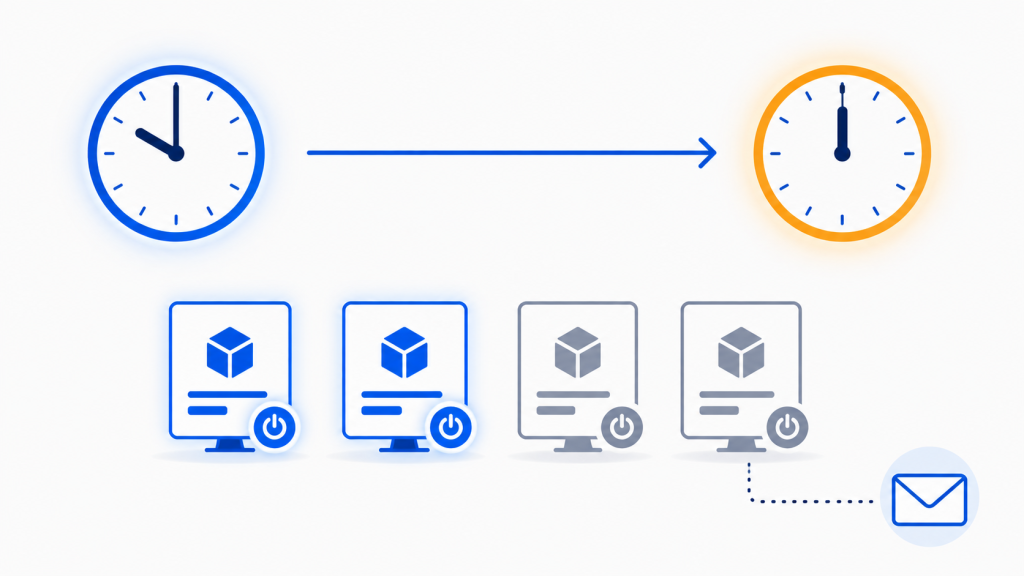
Somebody on the dev team finally said it out loud in standup: “Can we stop killing my VM at ten o’clock? I’m still working.”
Fair enough. The nightly auto-shutdown has been humming along at 10:00 PM Eastern for two years, saving a genuinely embarrassing amount of money, and now the request is to push it to midnight. Two hours later. How hard could that be?
Here’s the thing — it’s a thirty-second change if you know where to click, and a two-week incident review if you don’t. I’ve watched teams make this exact change and end up with VMs that shut down at 8:00 PM, VMs that shut down twice, VMs that didn’t shut down at all for six weeks, and — my personal favorite — a shutdown notification email that cheerfully announced “Your VMs were stopped at 10:00 PM” while the actual shutdown happened at midnight.
I’ve also watched a team spend an afternoon rebuilding a schedule from scratch because their PowerShell cmdlet wouldn’t change the start time. They didn’t need to. More on that in a moment.
Let’s do it right. This walkthrough covers both of the patterns you’re most likely to have in production: an Azure Automation Account runbook on a schedule, and an Azure Logic App with a Recurrence trigger. Portal steps first, then PowerShell and Azure CLI for anyone who’d rather not click.
The Reference Setup
So we’re all looking at the same thing, here’s the environment we’ll work in. Swap in your own names as you go.
| Component | Name |
| Resource group | acs-eng-test-eastus-rg |
| Automation Account | aa-vmops-eng-test-eastus |
| Runbook | Stop-TaggedVMs |
| Existing schedule | Nightly-VM-Shutdown-2200-ET |
| Logic App | la-vm-shutdown-eng-test-eastus |
| Communication Service | acs-email-eng-test-eastus |
| Sender domain | somedomainsomewhere.com |
| Subscription ID | 00000000-0000-0000-0000-000000000000 |
The runbook finds every VM tagged AutoShutdown=True, stops and deallocates them, then sends a summary email through Azure Communication Services. The Logic App variant does the same work with a Recurrence trigger, a Stop VM action, and an Office 365 Outlook connector for the notification. Same outcome, different plumbing.
Three Things That Will Bite You
Before you open the portal, internalize these. They’re the difference between a clean change and a Slack thread you’ll be answering all week.
1. The portal can do this. Your cmdlets can’t. That asymmetry is the trap.
This one catches experienced people, and it catches them in an unusual way — by making them do more work than necessary.
In the Azure portal, changing a schedule’s start time is genuinely trivial. Automation Account → Schedules → click the schedule → edit the start date and time → Save. Thirty seconds. The schedule keeps its name, its resource ID, and every runbook link attached to it. Nothing to relink, nothing to clean up.
Now look at what Set-AzAutomationSchedule accepts:
Set-AzAutomationSchedule
    [-Name] <String>
    [-IsEnabled <Boolean>]
    [-Description <String>]
    [-ResourceGroupName] <String>
    [-AutomationAccountName] <String>
Name, enabled, description, and the two identifiers. No -StartTime. No -TimeZone. The Azure CLI’s az automation schedule update is identical — –description and –is-enabled, nothing else.
It’s tempting to conclude the service doesn’t support the change. It does. The cmdlets just wrap the wrong API operation.
Azure Automation exposes two ways to modify a schedule. PATCH (Schedule – Update) accepts only description and isEnabled — that’s what the cmdlets call. PUT (Schedule – Create Or Update) accepts startTime, timeZone, frequency, interval, and advancedSchedule, and it returns 200 OK rather than 201 Created when the schedule already exists. That’s the portal’s path, and it’s available to you too.
So you have two legitimate procedures, and picking the wrong one is where people waste an afternoon:
- Edit in place — portal, or a REST PUT from PowerShell. Preserves the schedule name and all runbook links. This is what you want almost every time.
- Create, relink, retire — build a new schedule, unregister the runbook from the old one, register it against the new one, retire the old. Four steps instead of one.
Reach for create-relink-retire only when you actually want a new schedule: when the name should change to reflect the new time (Nightly-Shutdown-2200-ET → Nightly-Shutdown-0000-ET is a real reason), when you’re changing the frequency type entirely, or when your change process requires the old object preserved for audit. Otherwise, edit it and move on.
2. Midnight is a date boundary, not just a time
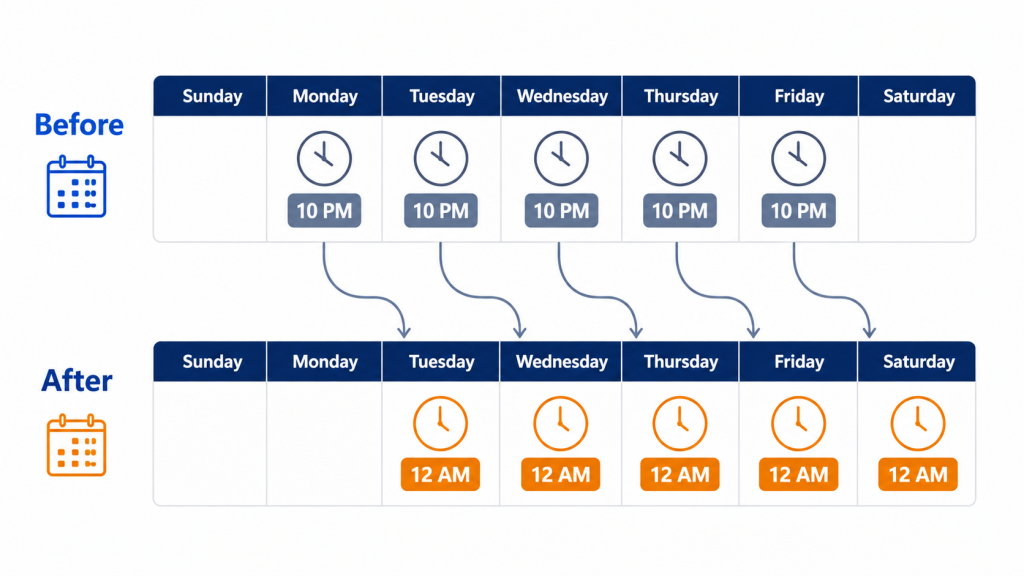
This one is sneaky. Your current schedule probably runs Monday through Friday at 10:00 PM. If you naively change that to Monday through Friday at 12:00 AM, you have just moved every shutdown twenty-two hours earlier, not two hours later.
Think it through. Monday at 10:00 PM is the end of Monday’s workday. Monday at 12:00 AM is the moment Monday starts — 22 hours before anybody logs in. Your developers will arrive Monday morning to find their VMs were stopped overnight, which is fine, and then discover they get shut down again the following midnight, which is the middle of Tuesday’s overnight — so Friday’s late work never gets protected, and Saturday morning’s VMs stay running all weekend.
What you almost certainly want is Tuesday through Saturday at 12:00 AM. That’s the true “two hours after the old 10 PM Monday-through-Friday run.” Write it out on paper before you touch the config. Seriously — draw the seven-day grid and mark the old runs and new runs. It takes ninety seconds and it catches this every time.
If your schedule is a plain daily recurrence with no day-of-week filter, you dodge this entirely. Confirm which one you have before you assume.
3. Use the time zone ID, never a UTC offset
Your request said “12:00 AM EDT.” EDT is a seasonal designation — it only exists from March to November. If you hardcode a UTC-04:00 offset, your shutdown will silently drift to 1:00 AM the moment daylight saving ends in November.
The correct value is the Windows time zone ID Eastern Standard Time. Yes, it’s confusingly named — that single ID covers both EST and EDT and handles the transition for you. Microsoft’s documentation is explicit here: Azure Automation supports daylight saving time and schedules accordingly, and for Logic Apps, if you specify a start time you must also select a time zone so the underlying UTC time shifts to counter the seasonal change.
Set the ID. Let Azure do the math. Never do offset arithmetic yourself.
Path A: Azure Automation Account
Step 1 — Document what exists today
Never skip this. You’ll want it for the rollback plan and for the change ticket.
Connect-AzAccount
Set-AzContext -SubscriptionId '00000000-0000-0000-0000-000000000000'

$params = @{
    ResourceGroupName     = 'acs-eng-test-eastus-rg'
    AutomationAccountName = 'aa-vmops-eng-test-eastus'
}

Get-AzAutomationSchedule @params |
    Select-Object Name, StartTime, TimeZone, Frequency, Interval,
                  DaysOfWeek, ExpiryTime, IsEnabled, NextRun |
    Format-List

Get-AzAutomationScheduledRunbook @params |
    Select-Object RunbookName, ScheduleName, JobScheduleId, Parameters
Save that output. The JobScheduleId values matter — those are the links between runbooks and schedules, and you’ll be recreating one.
Step 2 — The portal walkthrough (edit in place)
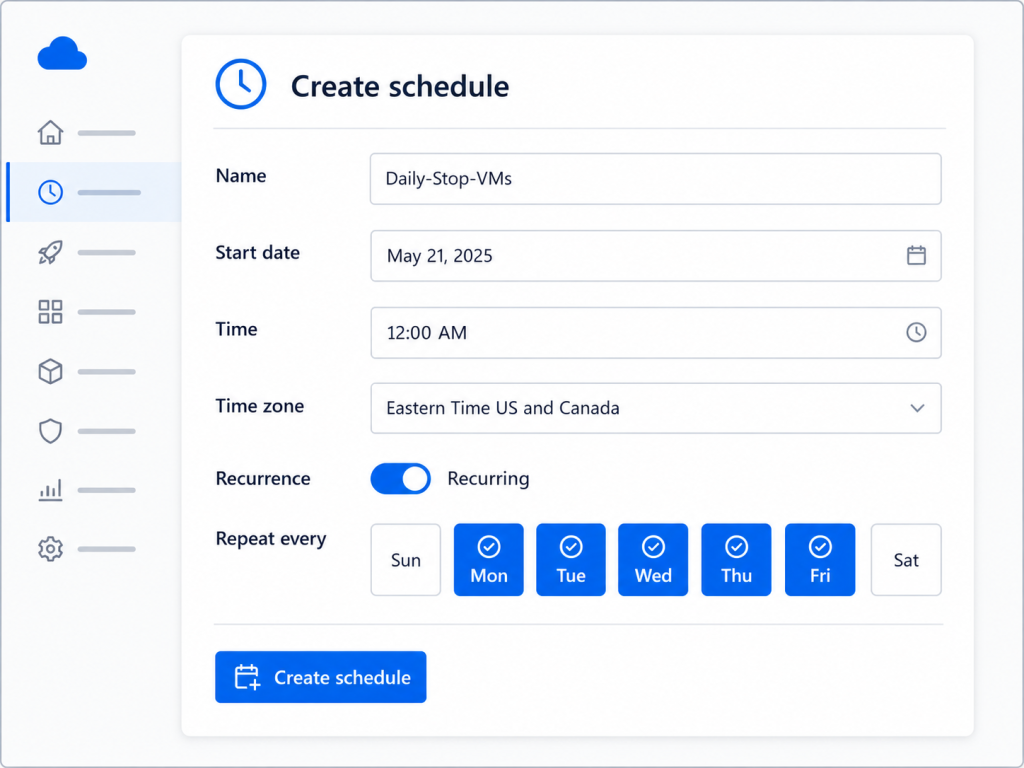
This is the fast path, and for most people it’s the only one they need.
- Open your Automation Account and select Schedules under Shared Resources. (You can also get here from Runbooks → your runbook → Resources → Schedules.)
- Click the schedule you want to change — Nightly-VM-Shutdown-2200-ET.
- Edit Starts to tomorrow’s date at 12:00 AM. Confirm Time zone reads (UTC-05:00) Eastern Time (US & Canada).
- If your recurrence has a day-of-week selection, fix it now — see the date-boundary warning above. Monday–Friday becomes Tuesday–Saturday.
- Click Save.
That’s it. Same schedule, same resource ID, every runbook link intact. Nothing to relink.
Two things worth knowing. If the current start time is in the past, the portal won’t let you save until you push the start date into the future — bump the date first, then set the time. And if the schedule name now describes the wrong time, consider renaming: you can’t rename an Automation schedule in place, so that’s the one scenario where create-relink-retire earns its keep. A schedule called Nightly-Shutdown-2200-ET that actually fires at midnight will confuse someone in six months.
Step 3 — The PowerShell version
Here’s where the cmdlets let you down. Set-AzAutomationSchedule can’t touch the start time, so you call the REST PUT operation directly. Invoke-AzRestMethod uses your existing Az context, so there’s no extra authentication to wire up.
<#
.SYNOPSIS
    Changes the start time of an existing Azure Automation schedule in place.

.DESCRIPTION
    Set-AzAutomationSchedule wraps the Automation PATCH operation, which
    accepts only description and isEnabled. This script calls the PUT
    (Create Or Update) operation instead, which accepts startTime, timeZone,
    frequency, interval, and advancedSchedule. Updating an existing schedule
    this way preserves the schedule name, resource ID, and all runbook links.

.NOTES
    Author  : John O'Neill Sr.
    Company : Azure Innovators
    Version : 2.0.0
    Requires: PowerShell 7.2+, Az.Accounts 3.0+, Az.Automation 1.10+
    Prereqs : Automation Contributor on the target Automation Account.
#>

$ErrorActionPreference = 'Stop'

$subscriptionId = '00000000-0000-0000-0000-000000000000'
$rg             = 'acs-eng-test-eastus-rg'
$account        = 'aa-vmops-eng-test-eastus'
$schedule       = 'Nightly-VM-Shutdown-2200-ET'

# Anchor to the next midnight. Start time must be in the future.
$startTime = (Get-Date).Date.AddDays(1).ToString('yyyy-MM-ddTHH:mm:ss')

$body = @{
    name       = $schedule
    properties = @{
        description      = 'Nightly tagged-VM shutdown, 12:00 AM Eastern.'
        startTime        = $startTime
        timeZone         = 'Eastern Standard Time'
        frequency        = 'Week'
        interval         = 1
        advancedSchedule = @{
            weekDays = @('Tuesday','Wednesday','Thursday','Friday','Saturday')
        }
    }
} | ConvertTo-Json -Depth 5

$path = "/subscriptions/$subscriptionId/resourceGroups/$rg" +
        "/providers/Microsoft.Automation/automationAccounts/$account" +
        "/schedules/$schedule" + '?api-version=2023-11-01'

$response = Invoke-AzRestMethod -Method PUT -Path $path -Payload $body

if ($response.StatusCode -notin 200, 201) {
    throw "Schedule update failed ($($response.StatusCode)): $($response.Content)"
}

Write-Output "Schedule updated. Status $($response.StatusCode)."

Get-AzAutomationSchedule -ResourceGroupName $rg `
    -AutomationAccountName $account -Name $schedule |
    Select-Object Name, StartTime, TimeZone, NextRun, IsEnabled
A 200 response means the existing schedule was updated. A 201 means you accidentally created a new one — check the schedule name for a typo. If you get a 409 Conflict, the service is refusing the in-place change for that schedule; fall back to create-relink-retire, covered below.
Send the complete properties block, not just the fields you’re changing. This is a PUT, not a PATCH — anything you omit gets reset to its default. Run Get-AzAutomationSchedule first and mirror what’s already there.
Step 4 — Azure CLI
Same story: az automation schedule update only carries description and enabled state, so use az rest.
SUB=00000000-0000-0000-0000-000000000000
RG=acs-eng-test-eastus-rg
AA=aa-vmops-eng-test-eastus
SCHED=Nightly-VM-Shutdown-2200-ET

az rest --method put \
  --url "https://management.azure.com/subscriptions/$SUB/resourceGroups/$RG/providers/Microsoft.Automation/automationAccounts/$AA/schedules/$SCHED?api-version=2023-11-01" \
  --body '{
    "name": "'"$SCHED"'",
    "properties": {
      "description": "Nightly tagged-VM shutdown, 12:00 AM Eastern.",
      "startTime": "2026-08-11T00:00:00",
      "timeZone": "Eastern Standard Time",
      "frequency": "Week",
      "interval": 1,
      "advancedSchedule": {
        "weekDays": ["Tuesday","Wednesday","Thursday","Friday","Saturday"]
      }
    }
  }'

az automation schedule show -g $RG --automation-account-name $AA -n $SCHED \
  --query "{name:name, startTime:startTime, timeZone:timeZone, nextRun:nextRun}"
Step 5 — The create-relink-retire fallback
You need this in three situations: the schedule name should change to match the new time, you’re switching frequency types, or a PUT came back 409.
$params = @{
    ResourceGroupName     = 'acs-eng-test-eastus-rg'
    AutomationAccountName = 'aa-vmops-eng-test-eastus'
}
$runbook     = 'Stop-TaggedVMs'
$oldSchedule = 'Nightly-VM-Shutdown-2200-ET'
$newSchedule = 'Nightly-VM-Shutdown-0000-ET'

[System.DayOfWeek[]]$runDays = @(
    [System.DayOfWeek]::Tuesday, [System.DayOfWeek]::Wednesday,
    [System.DayOfWeek]::Thursday, [System.DayOfWeek]::Friday,
    [System.DayOfWeek]::Saturday
)

New-AzAutomationSchedule @params -Name $newSchedule `
    -StartTime (Get-Date).Date.AddDays(1) `
    -TimeZone 'Eastern Standard Time' `
    -WeekInterval 1 -DaysOfWeek $runDays `
    -Description 'Nightly tagged-VM shutdown, 12:00 AM Eastern.'

Unregister-AzAutomationScheduledRunbook @params `
    -RunbookName $runbook -ScheduleName $oldSchedule -Force

Register-AzAutomationScheduledRunbook @params `
    -RunbookName $runbook -ScheduleName $newSchedule

Set-AzAutomationSchedule @params -Name $oldSchedule -IsEnabled $false
Remove-AzAutomationSchedule @params -Name $oldSchedule -Force
Two details. If the runbook takes parameters, Register-AzAutomationScheduledRunbook needs them passed again via -Parameters — they don’t carry across from the old link. And the new schedule’s start time must be at least a few minutes in the future or the create is rejected; (Get-Date).Date.AddDays(1) gives you tomorrow at exactly midnight local, which satisfies both conditions.
Path B: Azure Logic App
Logic Apps are the friendlier half of this story: the Recurrence trigger is genuinely editable in place. No create-relink-retire dance.
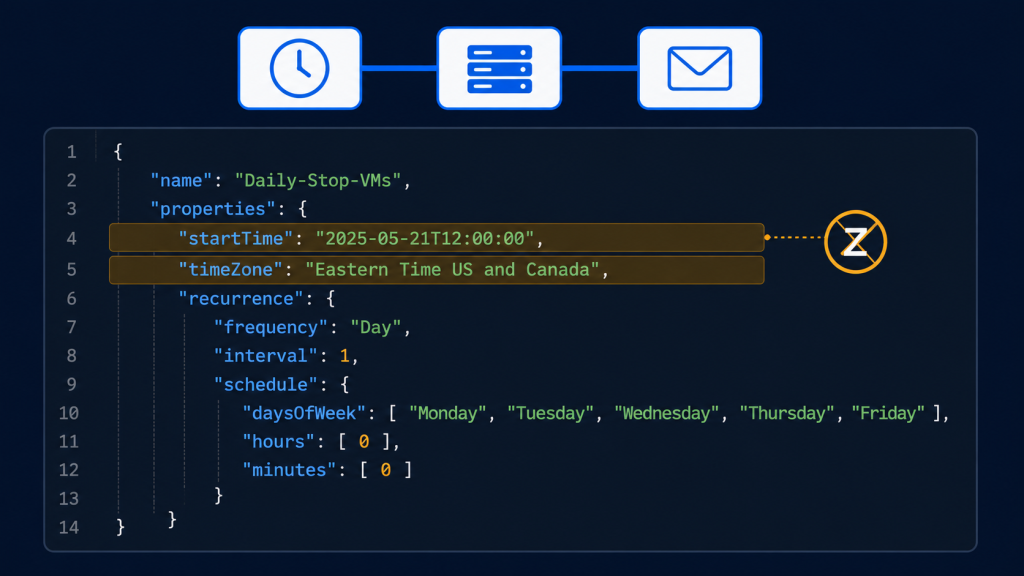
The portal route
- Open la-vm-shutdown-eng-test-eastus and select Logic app designer.
- Click the Recurrence trigger to expand it.
- Confirm Frequency is Week and Interval is 1.
- Set Time zone to (UTC-05:00) Eastern Time (US & Canada).
- Set Start time to 2026-08-11T00:00:00 — ISO 8601, and critically, no trailing Z. If you add the Z, Logic Apps treats the value as UTC and silently ignores your time zone selection.
- Under On these days, select Tuesday through Saturday.
- Under At these hours, enter 0. Under At these minutes, enter 0.
- Save.
That last pair matters more than it looks. Without explicit hours and minutes, subsequent recurrences are calculated from the last run time, which means they drift — a few seconds here, a few seconds there, until your “midnight” job is firing at 12:04 AM. Pinning hours and minutes makes the schedule absolute instead of relative.
The code view route
Faster if you’re comfortable with JSON. Designer toolbar → Code view:
"triggers": {
  "Recurrence": {
    "type": "Recurrence",
    "recurrence": {
      "frequency": "Week",
      "interval": 1,
      "schedule": {
        "hours": [ 0 ],
        "minutes": [ 0 ],
        "weekDays": [
          "Tuesday", "Wednesday", "Thursday", "Friday", "Saturday"
        ]
      },
      "startTime": "2026-08-11T00:00:00",
      "timeZone": "Eastern Standard Time"
    }
  }
}
Two things to check before you save. First, startTime has no Z because timeZone is populated — those two are mutually exclusive. Second, if your workflow is deployed from an ARM template or Bicep, make the change there and redeploy, otherwise your next pipeline run will quietly revert everything you just did in the portal.
One Logic Apps behavior worth flagging: for Day or Week frequencies with a future start time, Microsoft recommends setting the recurrence up at least one full cycle in advance — 24 hours for daily, 7 days for weekly — or the workflow may skip its first recurrence. If you make this change at 11:45 PM tonight, don’t be shocked when nothing happens fifteen minutes later.
The Step Everybody Forgets: The Email
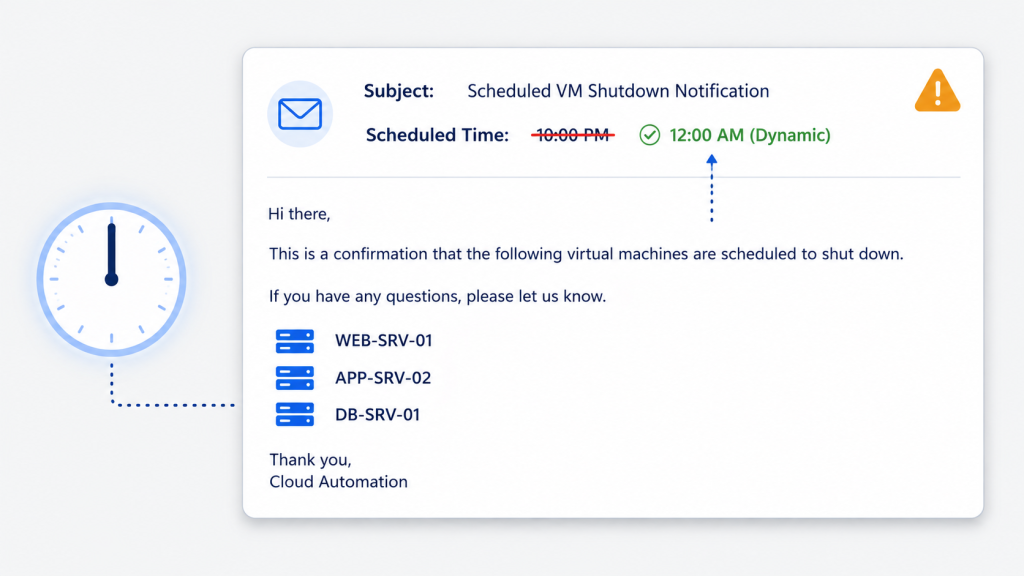
You’ve moved the shutdown. Now go read the notification the automation sends.
I have never once seen a team get this right on the first pass. The email body almost always contains a hardcoded string like this, buried in the runbook:
$htmlBody = @"
<p>Scheduled maintenance complete.</p>
<p>The following VMs were stopped at <strong>10:00 PM Eastern</strong>
as part of the nightly cost-optimization shutdown.</p>
<ul>$vmListHtml</ul>
"@
Now your automation is telling everyone the wrong time, every single night, forever. Worse, the subject line is usually where it lives — “Nightly VM Shutdown Complete — 10:00 PM ET” — so nobody even has to open the message to be misinformed.
The durable fix is to stop hardcoding it entirely. Emit the actual execution time instead:
$runTimeEt = [System.TimeZoneInfo]::ConvertTimeFromUtc(
    (Get-Date).ToUniversalTime(),
    [System.TimeZoneInfo]::FindSystemTimeZoneById('Eastern Standard Time')
)

$stamp = $runTimeEt.ToString('MMMM d, yyyy \a\t h:mm tt') + ' Eastern'

$htmlBody = @"
<p>Scheduled maintenance complete.</p>
<p>The following VMs were stopped at <strong>$stamp</strong>
as part of the nightly cost-optimization shutdown.</p>
<ul>$vmListHtml</ul>
"@
Do this once and the next schedule change costs you nothing. On the Logic App side, the equivalent is replacing any literal time text in your Office 365 Outlook action with a convertFromUtc(utcNow(), ‘Eastern Standard Time’, ‘f’) expression.
While you’re in there, check three more places that commonly carry a stale time: the runbook’s own description field, any Azure Monitor alert rules with suppression windows tied to the old shutdown, and your team’s runbook documentation or wiki page.
Verify It Actually Worked
Don’t declare victory until all four of these check out.
Confirm the next run time. In the portal, the schedule blade shows Next run. In PowerShell:
Get-AzAutomationSchedule -ResourceGroupName 'acs-eng-test-eastus-rg' `
    -AutomationAccountName 'aa-vmops-eng-test-eastus' `
    -Name 'Nightly-VM-Shutdown-0000-ET' |
    Select-Object Name, NextRun, TimeZone, IsEnabled
For a Logic App, the trigger card in the designer shows a preview of upcoming runs when frequency is Day or Week. Read it. If it says something you didn’t intend, you found your bug before production did.
Confirm the link. Get-AzAutomationScheduledRunbook should show your runbook against the new schedule and nothing against the old one. Orphaned links are the single most common cause of “it stopped running entirely.”
Run it once, manually. Start the runbook on demand, or use Run trigger on the Logic App. Watch the job stream. Confirm the VMs actually stop and the email actually lands — with the corrected timestamp.
Watch the first real execution. Set a reminder. Check the job history the next morning and confirm the run happened at midnight, exactly once, with a Completed status.
When It Goes Sideways
Nothing ran at all. If you went the create-relink-retire route, it’s almost always the runbook-to-schedule link. Check Get-AzAutomationScheduledRunbook. If you edited in place, links are preserved — so check whether the schedule got disabled instead.
It ran at 1:00 AM instead of midnight. You used a UTC offset instead of a time zone ID, and DST ended. Set timeZone to Eastern Standard Time.
It ran twice. Create-relink-retire, half finished — the old schedule is still enabled and still linked, so both fired. This failure mode doesn’t exist when you edit in place, which is one more argument for doing that.
Your PUT returned 201 instead of 200. You created a brand new schedule rather than updating the existing one, which means a typo in the schedule name. You now have two schedules; delete the accidental one.
Your PUT succeeded but half the settings changed. PUT replaces the whole properties block. Anything you omitted reverted to default — a missing advancedSchedule will silently drop your day-of-week filter. Re-read the schedule and send everything.
Everything shut down at 8:00 PM. Your start time carried a Z suffix in a Logic App, so it was interpreted as UTC and your time zone selection was discarded. Strip the Z.
The Logic App skipped its first run. Expected behavior for a Day or Week frequency configured less than one full cycle before the start time. It will pick up on the next recurrence.
Permission errors. You need Automation Contributor on the Automation Account, not just Reader on the resource group.
Rolling Back
Keep the rollback trivially cheap, and note that editing in place makes it almost free.
Before you change anything, save the Step 1 output to your change ticket — you need the original StartTime, TimeZone, Frequency, Interval, and DaysOfWeek. Recovery is then the same PUT with the old values pasted back in. One command, no relinking, thirty seconds.
If you went the create-relink-retire route instead, rollback is the same four steps reversed: create a schedule at the old time, unregister from the new, register against the old, retire the new. Longer, and it needs the runbook’s parameter values too.
Either way, paste the exact rollback command into the change record up front. An on-call engineer at 2:00 AM should be able to execute it without needing to understand any of this.
Wrapping Up
The change itself is small. The care is in the surroundings.
The one that surprises people: the portal edits a schedule’s start time in thirty seconds, but Set-AzAutomationSchedule and az automation schedule update can’t touch it — they wrap the PATCH operation, which only carries description and enabled state. That gap makes it easy to conclude the service doesn’t support the change and go do four steps of work you didn’t need. It does support it. Use the portal, or call the PUT operation directly.
The rest is the stuff that actually breaks production: midnight moves you across a date boundary, time zone IDs beat UTC offsets, and the notification email is probably carrying a hardcoded lie.
Fix the email to emit its own timestamp and you’ll never do that part again. Draw the seven-day grid and you’ll never get the day-of-week shift wrong.
Now go tell the dev team they get their two extra hours.