
Part 2 of a two-part series. Part 1 built this as an Azure Automation PowerShell runbook.
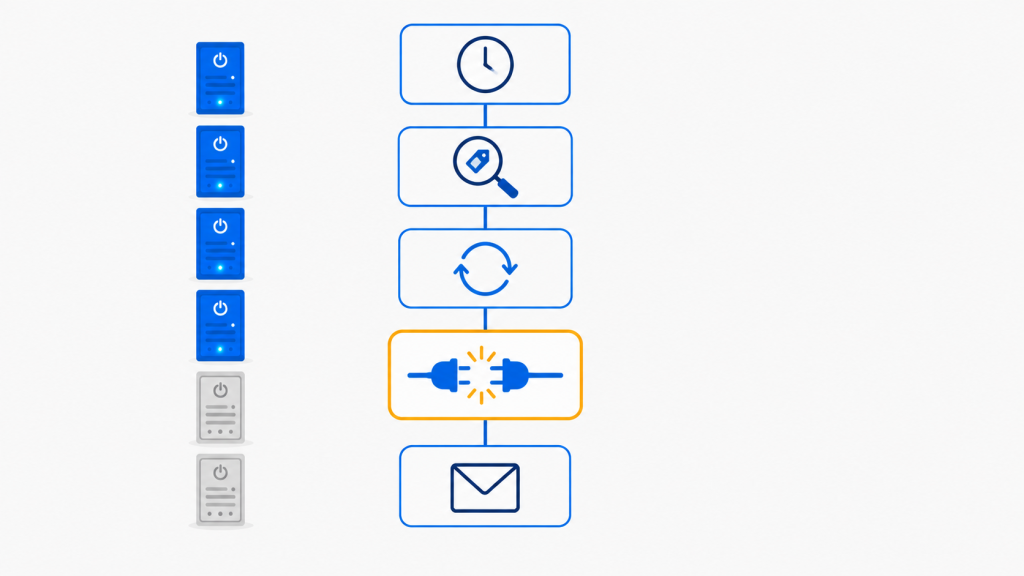
In Part 1 we built a nightly VM shutdown with an Automation Account and about 120 lines of PowerShell. It works, it’s testable, and it lives in source control where it belongs.
Now let’s build the exact same thing without writing a script.
That’s not a gimmick. There are real teams where the person who owns cloud cost is a project manager, not an engineer — and a workflow they can open, read, and modify is worth more than an elegant script only one person understands. There are also shops where PowerShell in production requires a review board and a Logic App doesn’t. Tooling politics are still politics.
So: same architecture, same outcome. Then an honest head-to-head at the end, because the right answer genuinely isn’t the same for everyone.
Choose Your Path
Like Part 1, every step is written twice.
- Portal person? Follow the Designer blocks. You’ll build the whole workflow by clicking, and never need to touch JSON.
- Command-line person? Skip to the Code view and Deploy from the command line blocks. There’s a complete workflow definition at the end of Step 7 you can deploy in one command — no designer required at any point.
- Hybrid? Build it in the designer once to understand the shape, then export the definition and manage it as a file from then on. That’s what I do, and Step 8 covers the export.
One honest caveat up front: Logic Apps are designer-first by design. The scripted path is real and complete, but the designer is where the tooling is best. If you’re a die-hard CLI person, this is the article where I’d tell you the portal is genuinely worth your time.
What Changes and What Doesn’t
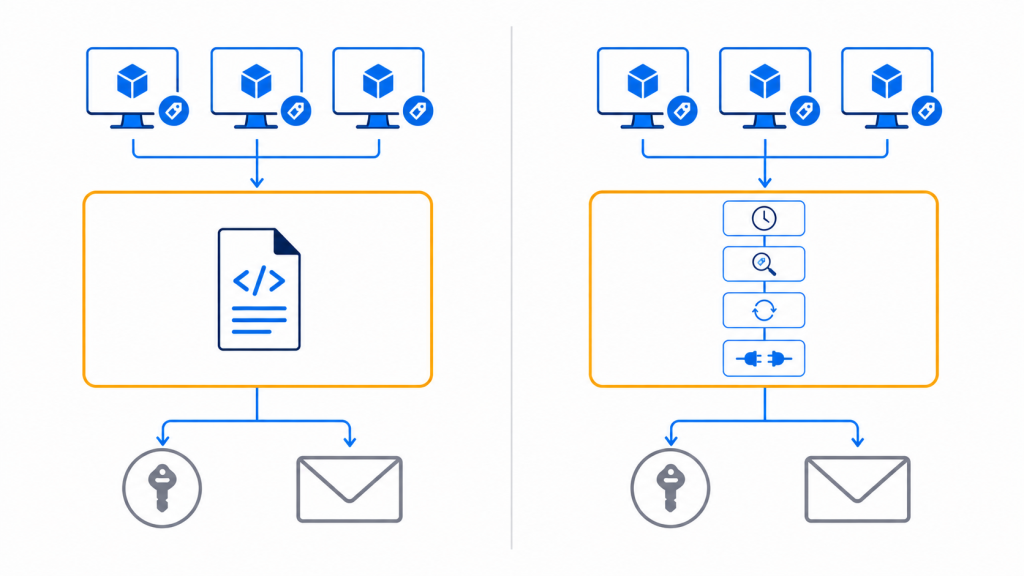
Three pieces carry straight over from Part 1 — if you followed along there, you already have them:
- The tags on your VMs. Still AutoShutdown=True. Still the control plane.
- A managed identity with least-privilege RBAC. Same custom role, new resource holding it.
- Deallocate, not power off. Still the difference between saving money and not.
What changes is the middle. Instead of an Automation Account running a runbook, you get a Logic App running a workflow: a Recurrence trigger, a couple of HTTP actions, a loop, and a mail action.
| Component | Name |
| Resource group | acs-eng-test-eastus-rg |
| Logic App | la-vm-shutdown-eng-test-eastus |
| Plan | Consumption |
| Tag filter | AutoShutdown = True |
| Notification | Office 365 Outlook |
| Subscription ID | 00000000-0000-0000-0000-000000000000 |
Consumption or Standard? For a workflow that fires once a night and touches a dozen VMs, Consumption is the obvious pick — you pay per action execution and this costs literal pennies per month. Standard makes sense when you’re running many workflows, need VNet integration, or want local development with the VS Code extension. Start Consumption.
Before You Start
Permissions. Contributor on the resource group creates the Logic App. Step 2’s role assignments additionally need User Access Administrator or Owner — and one of them is at subscription scope, which in many organizations means a ticket rather than a click. Start that conversation before you build, not after.
Tooling, if you’re scripting. Azure CLI needs 2.55.0 or higher for the logic extension; it installs itself on first use. Azure PowerShell needs Az.LogicApp. Neither matters if you’re staying in the designer.
Part 1 is optional but useful. If you already built the Automation Account version, you have the VM Shutdown Operator custom role and the tagged VMs, and you can skip straight to Step 1. If you’re starting fresh here, tag a VM with AutoShutdown=True first — Part 1’s Step 1 covers it in three ways.
One VM you’re allowed to break. Same advice as Part 1. Prove the chain end to end on something non-critical before you widen the tag.
Step 1 — Create the Logic App and Its Identity
Portal. Search Logic apps → Add → Consumption. Name it la-vm-shutdown-eng-test-eastus, drop it in acs-eng-test-eastus-rg, pick East US, and create.
Once deployed, go to Settings → Identity → System assigned → toggle Status to On → Save. Azure creates the service principal and shows an Object (principal) ID. Copy it.
Azure CLI.
az logic workflow create \
  --resource-group acs-eng-test-eastus-rg \
  --name la-vm-shutdown-eng-test-eastus \
  --location eastus \
  --mi-system-assigned true \
  --definition empty-workflow.json

PRINCIPAL=$(az logic workflow show \
  --resource-group acs-eng-test-eastus-rg \
  --name la-vm-shutdown-eng-test-eastus \
  --query identity.principalId -o tsv)
The logic CLI extension installs itself on first use and needs Azure CLI 2.55.0 or higher. –definition is required even at creation, so start with a stub containing just an empty triggers and actions object — you’ll replace it wholesale in Step 7.
PowerShell.
New-AzLogicApp -ResourceGroupName 'acs-eng-test-eastus-rg' `
    -Name 'la-vm-shutdown-eng-test-eastus' `
    -Location 'eastus' `
    -DefinitionFilePath '.\empty-workflow.json'

Set-AzLogicApp -ResourceGroupName 'acs-eng-test-eastus-rg' `
    -Name 'la-vm-shutdown-eng-test-eastus' `
    -IdentityType SystemAssigned -Force
Step 2 — Grant the Identity Permission to Stop VMs
Same reasoning as Part 1: this identity runs unattended at midnight, so give it the narrowest possible rights.
The Logic App needs two assignments, and missing the second one is the most common setup failure in this build:
- VM Shutdown Operator (the custom role from Part 1) or Virtual Machine Contributor, scoped to the resource group — so it can deallocate.
- Reader at subscription scope — so Azure Resource Graph returns anything at all. Resource Graph shows only what your identity can see, and an identity scoped to one resource group sees nothing at subscription scope.
Portal. For the first: open the resource group → Access control (IAM) → Add role assignment → pick the role → Managed identity → Logic app → select yours. For the second: repeat at the subscription level with Reader.
Azure CLI.
az role assignment create \
  --assignee-object-id "$PRINCIPAL" \
  --assignee-principal-type ServicePrincipal \
  --role "VM Shutdown Operator" \
  --resource-group acs-eng-test-eastus-rg

az role assignment create \
  --assignee-object-id "$PRINCIPAL" \
  --assignee-principal-type ServicePrincipal \
  --role "Reader" \
  --scope "/subscriptions/00000000-0000-0000-0000-000000000000"
Give the assignments five minutes before you test. RBAC propagation delay is the single most common “but I did grant it” moment in this whole build.
Step 3 — The Recurrence Trigger
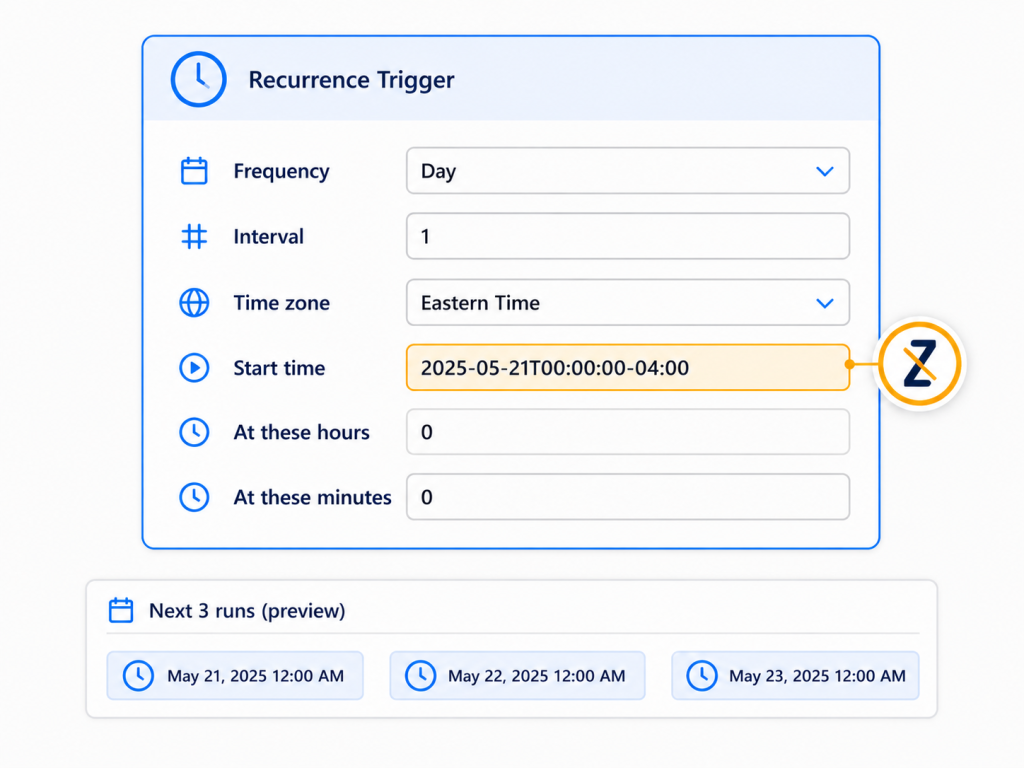
Designer. Open Logic app designer, start with a blank workflow, and add the Schedule built-in trigger named Recurrence. Configure it:
- Frequency: Day
- Interval: 1
- Time zone: (UTC-05:00) Eastern Time (US & Canada)
- Start time: 2026-08-11T00:00:00
- At these hours: 0
- At these minutes: 0
Code view.
"triggers": {
  "Recurrence": {
    "type": "Recurrence",
    "recurrence": {
      "frequency": "Day",
      "interval": 1,
      "schedule": { "hours": [ 0 ], "minutes": [ 0 ] },
      "startTime": "2026-08-11T00:00:00",
      "timeZone": "Eastern Standard Time"
    }
  }
}
Three things will bite you if you rush this.
No trailing Z on the start time. If you set a time zone and append Z, Logic Apps reads the value as UTC and silently discards your time zone. Your midnight run becomes 8:00 PM. Pick one or the other; for anything human-scheduled, pick the time zone.
Set the hours and minutes explicitly. Without them, each recurrence is calculated from the previous run time rather than an absolute clock. Storage latency compounds, and a month later your “midnight” job fires at 12:06 AM. Pinning hours and minutes makes the schedule absolute.
Give it a full cycle of lead time. Microsoft’s guidance for Day and Week frequencies is to configure the recurrence at least one full interval before the start time — 24 hours for daily. Set this up at 11:50 PM and don’t be surprised when nothing happens ten minutes later.
Step 4 — Find the Tagged VMs
This is where the Logic App diverges most from the runbook. There’s no Get-AzVM | Where-Object — you query ARM directly with an HTTP action authenticated by the managed identity.
Designer. Add an HTTP action named Get_Tagged_VMs:
- Method: POST
- URI: https://management.azure.com/subscriptions/00000000-0000-0000-0000-000000000000/providers/Microsoft.ResourceGraph/resources?api-version=2022-10-01
- Authentication: Managed identity → System-assigned
- Audience: https://management.azure.com/
- Body:
{
  "query": "Resources | where type =~ 'microsoft.compute/virtualmachines' | where tags['AutoShutdown'] =~ 'True' | project id, name, resourceGroup"
}
Azure Resource Graph is the right tool here. It queries the whole subscription in one call, handles paging, and its tag filtering is far cleaner than looping the Compute list API and filtering client-side.
Then add a Parse JSON action so downstream steps get real property names instead of raw expressions. Feed it the HTTP body and use this schema:
{
  "type": "object",
  "properties": {
    "data": {
      "type": "array",
      "items": {
        "type": "object",
        "properties": {
          "id":            { "type": "string" },
          "name":          { "type": "string" },
          "resourceGroup": { "type": "string" }
        }
      }
    }
  }
}
Step 5 — Deallocate Each VM
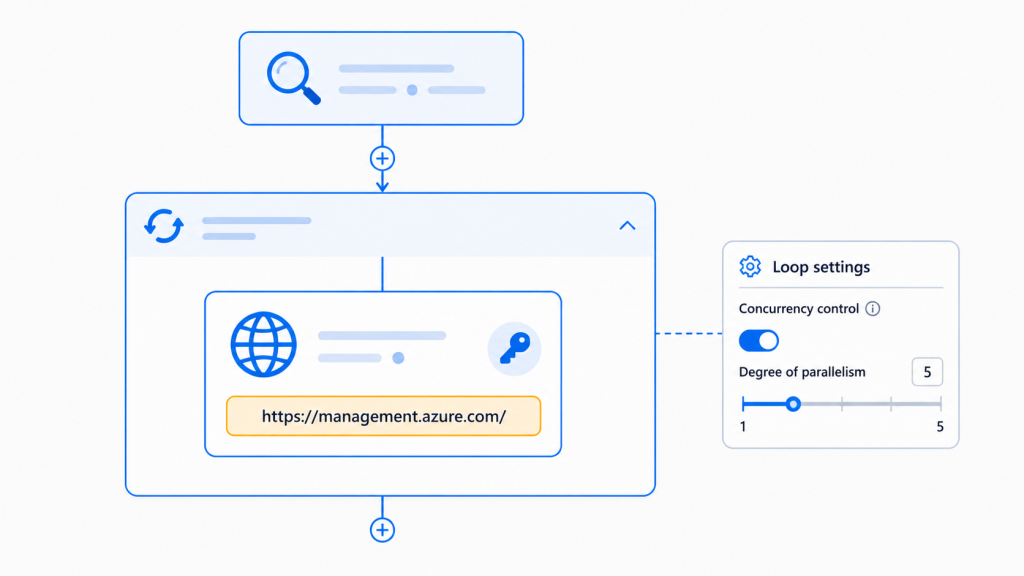
Designer. Add a For each control, set its input to the data array from Parse JSON, and put a single HTTP action inside it:
- Method: POST
- URI: https://management.azure.com@{items(‘For_each’)?[‘id’]}/deallocate?api-version=2024-11-01
- Authentication: Managed identity, system-assigned, audience https://management.azure.com/
Note the URI construction: Resource Graph hands you a full resource ID starting with /subscriptions/…, so you concatenate it onto the management endpoint. And note /deallocate — not /powerOff. Power off halts the OS but keeps the compute allocated and billing. Deallocate releases it. If you get one thing right in this entire post, make it that.
Two settings on the For each loop, both under its three-dot menu:
- Concurrency Control on, degree of parallelism around 5. Default is 20, which will earn you ARM throttling on a large fleet. Sequential (1) is safest but slow.
- Leave the loop’s default behavior of failing the run when an iteration fails — you want a red run in the history if a VM didn’t stop.
Deallocate is a long-running operation. The HTTP action returns 202 Accepted immediately; Logic Apps polls the async header until it completes, so the action won’t report success until the VM is genuinely deallocated. That’s the behavior you want and you get it for free.
Step 6 — Send the Summary Email
Designer. Add an Office 365 Outlook — Send an email (V2) action after the loop. First use prompts you to authorize a connection; sign in with a service account, not your personal identity. A workflow that stops working because someone changed jobs is not automation.
- To: cl******@*****************re.com
- Subject: Nightly VM Shutdown – @{length(body(‘Parse_JSON’)?[‘data’])} VMs processed
- Body:
Nightly VM shutdown completed at
@{convertFromUtc(utcNow(), 'Eastern Standard Time', 'f')}.

VMs processed: @{length(body('Parse_JSON')?['data'])}
Resource group: acs-eng-test-eastus-rg
That convertFromUtc expression is the important line. Never type a literal “12:00 AM” into this body — the moment someone reschedules the workflow, your email becomes a lie nobody notices for months. Generate the timestamp and it’s true forever.
Scripting this? The Office 365 connector needs an interactive OAuth consent, which doesn’t script cleanly — you’d have to pre-create the API connection resource and reference it by ID. If you’re deploying from the command line, use an HTTP action against the Azure Communication Services endpoint from Part 1 with managed identity auth instead. No connector, no consent, no service account to maintain. That’s what the definition in the next step does.
Step 7 — Handle Failures Properly
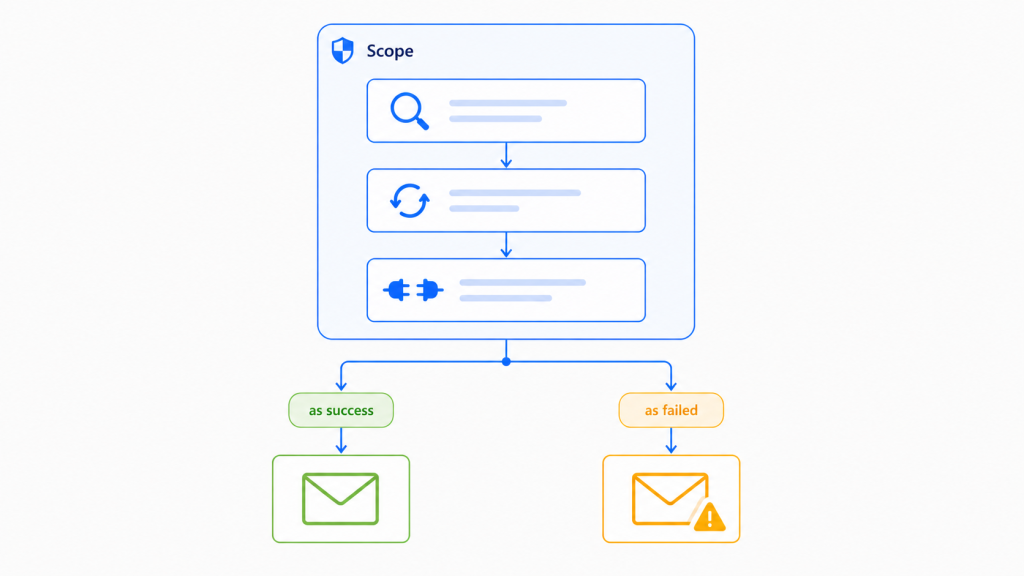
This is where Logic Apps genuinely beat a script, and most people never use it.
Designer. Wrap the Resource Graph query, the For each loop, and the send-email action in a Scope named Shutdown_Sequence. Then add a second action after the scope — another email, subject [FAILED] Nightly VM Shutdown — open its three-dot menu → Configure run after, uncheck is successful, and check has failed and has timed out.
You now have a real error path. Success sends the summary; any failure anywhere in the scope sends an alert instead. No try/catch, no $ErrorActionPreference, and it’s visible to anyone who opens the designer.
Add a retry policy while you’re there: on the deallocate HTTP action, Settings → Retry Policy → Exponential, count 4, interval PT10S. ARM throttles under load and a bare retry turns most 429s into non-events.
Deploy from the command line. Here’s the whole workflow as a definition file — trigger, query, loop, scope, and both success and failure paths. Save it as vm-shutdown-workflow.json:
{
  "$schema": "https://schema.management.azure.com/providers/Microsoft.Logic/schemas/2016-06-01/workflowdefinition.json#",
  "contentVersion": "1.0.0.0",
  "triggers": {
    "Recurrence": {
      "type": "Recurrence",
      "recurrence": {
        "frequency": "Day",
        "interval": 1,
        "schedule": { "hours": [ 0 ], "minutes": [ 0 ] },
        "startTime": "2026-08-11T00:00:00",
        "timeZone": "Eastern Standard Time"
      }
    }
  },
  "actions": {
    "Get_Tagged_VMs": {
      "type": "Http",
      "inputs": {
        "method": "POST",
        "uri": "https://management.azure.com/subscriptions/00000000-0000-0000-0000-000000000000/providers/Microsoft.ResourceGraph/resources?api-version=2022-10-01",
        "body": {
          "query": "Resources | where type =~ 'microsoft.compute/virtualmachines' | where tags['AutoShutdown'] =~ 'True' | project id, name"
        },
        "authentication": {
          "type": "ManagedServiceIdentity",
          "audience": "https://management.azure.com/"
        }
      }
    },
    "For_each": {
      "type": "Foreach",
      "runAfter": { "Get_Tagged_VMs": [ "Succeeded" ] },
      "foreach": "@body('Get_Tagged_VMs')?['data']",
      "runtimeConfiguration": {
        "concurrency": { "repetitions": 5 }
      },
      "actions": {
        "Deallocate_VM": {
          "type": "Http",
          "inputs": {
            "method": "POST",
            "uri": "https://management.azure.com@{items('For_each')?['id']}/deallocate?api-version=2024-11-01",
            "authentication": {
              "type": "ManagedServiceIdentity",
              "audience": "https://management.azure.com/"
            },
            "retryPolicy": {
              "type": "exponential",
              "count": 4,
              "interval": "PT10S"
            }
          }
        }
      }
    }
  },
  "outputs": {}
}
Then deploy it:
az logic workflow update \
  --resource-group acs-eng-test-eastus-rg \
  --name la-vm-shutdown-eng-test-eastus \
  --definition vm-shutdown-workflow.json
Or with PowerShell:
Set-AzLogicApp -ResourceGroupName 'acs-eng-test-eastus-rg' `
    -Name 'la-vm-shutdown-eng-test-eastus' `
    -DefinitionFilePath '.\vm-shutdown-workflow.json' -Force
Add your notification action to the actions block before deploying — either an ACS HTTP call or, if you’ve already consented to the Office 365 connector in the designer, the connector reference the portal generated for you.
Step 8 — Test, Verify, and Get It Into Source Control
Designer. Hit Run Trigger → Run. Don’t wait for midnight.
The run history is the best part of this whole approach. Open the run and every action shows its inputs, outputs, duration, and status. Click the failed one and you see the exact ARM response body. Compared to reading a runbook’s job stream, it’s a different sport.
Command line.
az logic workflow show \
  --resource-group acs-eng-test-eastus-rg \
  --name la-vm-shutdown-eng-test-eastus \
  --query "{state:state, trigger:definition.triggers.Recurrence.recurrence}"
Check four things either way:
- Get_Tagged_VMs returned the VMs you expected — and only those.
- Each loop iteration returned 200 or 202.
- The portal shows the VMs as Stopped (deallocated), not just Stopped.
- The email arrived with a real timestamp.
Then export the definition. Even if you built this entirely by clicking, don’t leave it living only in the portal. Designer toolbar → Code view → copy the JSON into a file in Git. Or pull it down:
az logic workflow show \
  --resource-group acs-eng-test-eastus-rg \
  --name la-vm-shutdown-eng-test-eastus \
  --query definition > vm-shutdown-workflow.json
A Logic App with no exported definition is a single-point-of-failure that a mis-click can destroy. Thirty seconds now.
When It Doesn’t Work
The failures here look different from the runbook’s.
Get_Tagged_VMs returns an empty data array. Almost always the missing Reader assignment at subscription scope from Step 2. It fails silently with a 200, which is what makes it confusing.
403 Forbidden on the deallocate action. RBAC hasn’t propagated, or the role is scoped to a resource group that doesn’t contain the VM. Resource Graph happily returns VMs your shutdown role can’t touch. Scope the query to match your permissions, or widen the permissions deliberately.
The workflow ran at 8:00 PM. Trailing Z on startTime. Strip it.
429 Too Many Requests inside the loop. Concurrency is too high. Drop the degree of parallelism and confirm the exponential retry policy is in place.
The trigger never fired at all. Check the workflow is Enabled — a saved workflow is not necessarily a running one — and that you gave it a full 24 hours of lead time before the first scheduled run.
Email action fails with an expired connection. The Office 365 connector’s OAuth grant was tied to an account that changed password or left. This is the failure mode that makes the ACS-over-HTTP alternative worth the extra setup.
Runbook or Logic App? An Honest Comparison
Having built both, here’s where each actually wins.
Pick the Logic App when the people maintaining it aren’t scripters, when you want run history and per-action error visibility without instrumenting anything, when you need to fan out to Teams or ServiceNow or an approval step later, or when your organization’s change process treats low-code as lower risk. The visual error path in Step 7 is genuinely better than what most people write in PowerShell.
Pick the runbook when the logic is complex or conditional, when you want it in Git with pull requests and readable diffs, when you need -WhatIf style dry runs, or when the same logic needs to run somewhere else too. A JSON workflow definition technically diffs, but nobody enjoys reviewing it.
Cost is a wash at this scale — both are effectively free for a nightly job. At high volume, Consumption Logic Apps bill per action execution, so a loop over 500 VMs adds up in a way a runbook doesn’t.
Source control is the sharpest difference, and it cuts against the Logic App. A runbook is a .ps1 — it diffs cleanly, reviews cleanly, and a colleague can comment on line 47. A workflow definition is nested JSON where reordering two actions produces a diff nobody can read. You can absolutely keep it in Git, and you should, but don’t pretend the review experience is equivalent.
Testing cuts the other way. The runbook’s WhatIfOnly parameter is a dry run you had to build yourself. The Logic App’s run history is a dry run you get for free, retroactively, on every execution — including the ones that already failed at 3 AM last Tuesday. Resubmitting a failed run from history with one click has no runbook equivalent.
The honest tiebreaker is the 2 AM question: when this breaks, who fixes it? Build the version that person can read. That’s not a technical criterion, and it’s usually the right one.
If you’re genuinely split, here’s the tie-break I’d use: build the Logic App if this automation is likely to grow — approvals, Teams notifications, ticket creation, conditional logic per environment. Composition is what Logic Apps are for, and each addition is a drag-and-drop rather than a rewrite. Build the runbook if this is likely to stay exactly what it is today, because a stable script is close to zero-maintenance and the portal’s designer will keep changing around you.
Wrapping the Series
Two implementations, one outcome: VMs that stop themselves every night, an email that tells the truth about when it happened, and not a single stored credential anywhere.
Whichever you built, do the two things people skip. Alert on absence of a successful run, not just on failure — a disabled schedule is silent, and silence is indistinguishable from an inbox you haven’t checked. And keep every timestamp generated rather than typed, so the next schedule change doesn’t quietly turn your notification into misinformation.
Now go find the VMs nobody’s turning off.
Related: Moving an Azure VM Auto-Shutdown from 10 PM to Midnight — what to do when the schedule you just built needs to change.